
Resolume.com Interview with Sean Bowes

I had the pleasure of being interviewed by Resolume about my career so far as a VJ and Concert Visual Designer, as well as my goals and experience as an educator on YouTube.
Q&A Feature with Disguise

I was recently interviewed by Disguise about working in the music industry and how that led me into working with XR and Virtual Production over the past year. We also discuss my YouTube Channel where I share my knowledge about my favorite pieces of software, including Disguise.
CLOAKING | MAKING MUSIC VISUAL - Interview Series | How to make Concert Visuals
In this episode, we sit down with CLOAKING to discuss how he got his start as a VJ and visual artist.
We chat with him about how he got his first gigs as a VJ, how he gets noticed during shows, some of the wild experiences he's had as an underground VJ, and the mindset that sets him apart.
CLOAKING is an audiovisual artist specializing in 3d animation, projection mapping, music videos and real-time visuals. He's performed at raves everywhere from the underground to the metaverse.
Cloaking Links
Instagram: https://www.instagram.com/cloaking__/
Website: https://www.cloaking.us
YouTube: https://www.youtube.com/c/CLOAKINGUS
Twitter: https://twitter.com/CLOAKING_
Twitch: https://www.twitch.tv/cloakingtv
Foundation NFTs: https://foundation.app/cloaking
RAUXRAUX | MAKING MUSIC VISUAL - Interview Series | How to make Concert Visuals
In this episode we sit down with Romario Rivera aka RAUXRAUX to discuss how he got his start as a VJ.
We chat with him about how he got his first jobs and internships, what its like on the road, how he stands out during gigs and gets repeat bookings, and the mindset that got him on some of the biggest stages in the world.
RAUXRAUX is a VJ and Editor and member of the Immanent VJ crew. He's toured with artists like 12th Planet, and performed visuals on major festival stages around the world. He's also a techno producer and holds the title for Busiest VJ of 2020 (according to me).
RAUXRAUX's Links:
Instagram: https://www.instagram.com/rauxrauxvj/
IMMANENT Links:
https://www.immanent.tv
https://www.instagram.com/immanent_vj
COLIN STRANG | MAKING MUSIC VISUAL - Interview Series | How to make Concert Visuals
In this episode we sit down with Colin Strang to discuss how he got his start in the concert visuals industry.
We chat with him about how he went from being a wedding DJ to getting his work on the Coachella stage, some unique ways he's put himself out there to get work, the pros and cons of studio work, and the events surrounding his move to Los Angeles.
Colin is a 3D motion designer based in Los Angeles specializing in concert visuals for touring artists. He's worked with artists such as Rezz, Kayzo, Martin Garrix, Sudden Death, 12th Planet, Downlink, Allison Wonderland, and many more.
Colin Strang's Links:
Website: https://www.strangcg.com/
Instagram: https://www.instagram.com/strangcg/
OFER ZMORA | MAKING MUSIC VISUAL - Interview Series | How to make Concert Visuals
In this episode, we sit down with Ofer Zmora to discuss how he made his way into the concert visuals industry. We talk about breaking into the industry with personally driven projects, how one good relationship could be the key to unlocking opportunity, how it feels to work with the music and visual artists he idolizes, and much more.
Ofer Zmora is a 3D Motion Designer specializing in Concert VIsual animation and visual installations. He's worked with artists like Shakira, J Balvin, Marshmello, Bad Bunny, Tears For Fears, Bryson Tiller, Excision, Infected Mushroom, and many others.
Ofer Zmora's Links:
Website: https://www.ozvisual.com/
Instagram: https://www.instagram.com/ozvisualdesign/
Twitter: https://twitter.com/OzVisualDesign
--
Sean Bowes Links:
Website: https://www.seanbowes.com/
Instagram: https://www.instagram.com/seanbowes/
Twitter: https://twitter.com/SeanBuzi
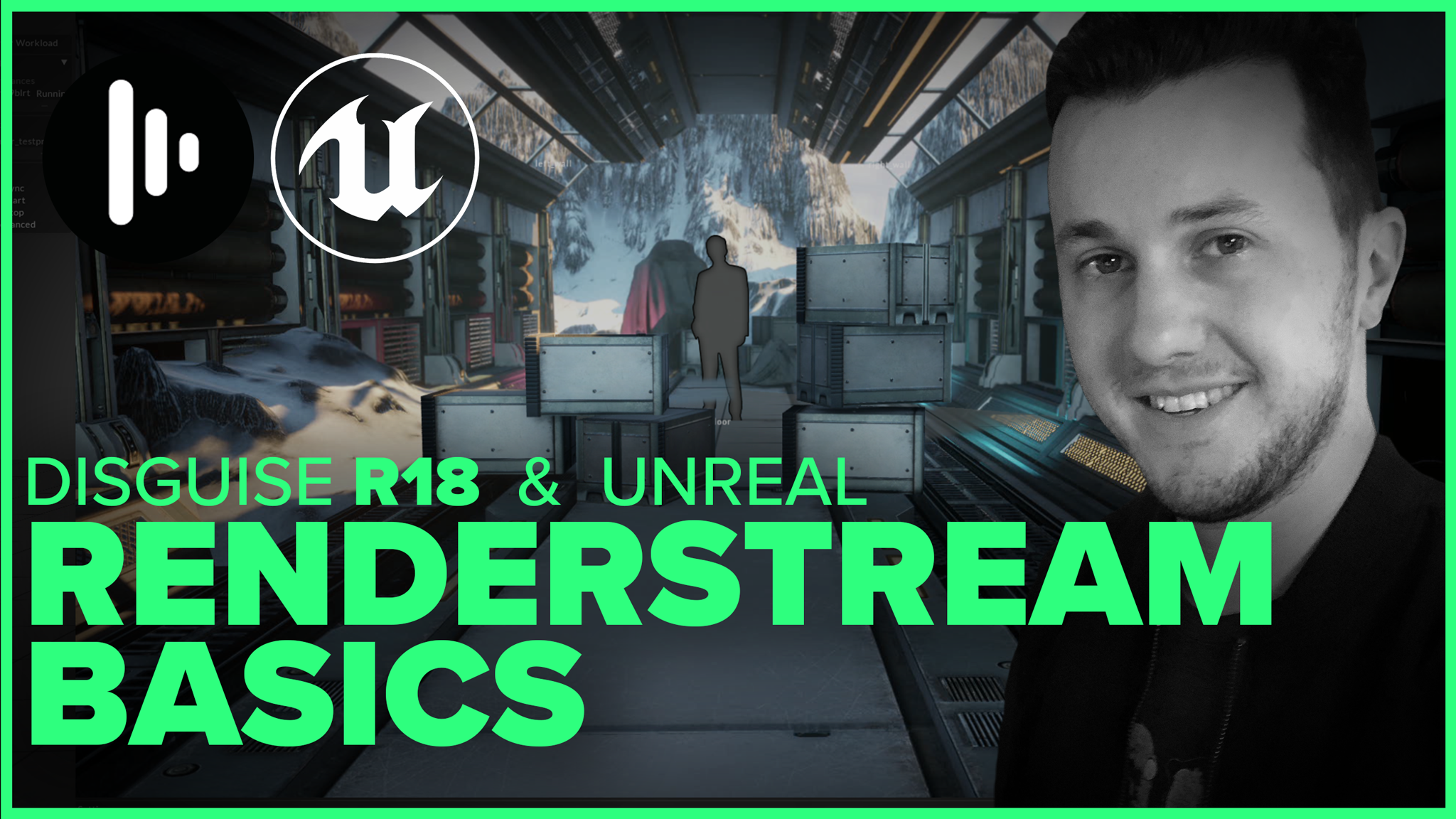
R18 Disguise RenderStream Setup | Unreal (UE4) | XR Tutorial
R18 UPDATE! Learn how to set up the Disguise R18 Renderstream Plugin for Unreal Engine 4.
I'll walk you through how to get the plugin, add it to your unreal project, set up RenderStream Channels and settings so you can stream your virtual world to disguise for an XR Virtual Production.
I also cover the basics of setting up a Renderstream Layer and MR Set so you can preview your scene in Disguise Designer
R18 UPDATE! Learn how to set up the Disguise R18 Renderstream Plugin for Unreal Engine 4.
I'll walk you through how to get the plugin, add it to your unreal project, set up RenderStream Channels and settings so you can stream your virtual world to disguise for an XR Virtual Production.
I also cover the basics of setting up a Renderstream Layer and MR Set so you can preview your scene in Disguise Designer
Get disguise: https://download.disguise.one/
Get the Renderstream Plugin: https://download.disguise.one/#resources
Disguise Community XR Hub: https://www.community.disguise.one/s/xr-hub
Disguise E-Learning Portal https://training.disguise.one/
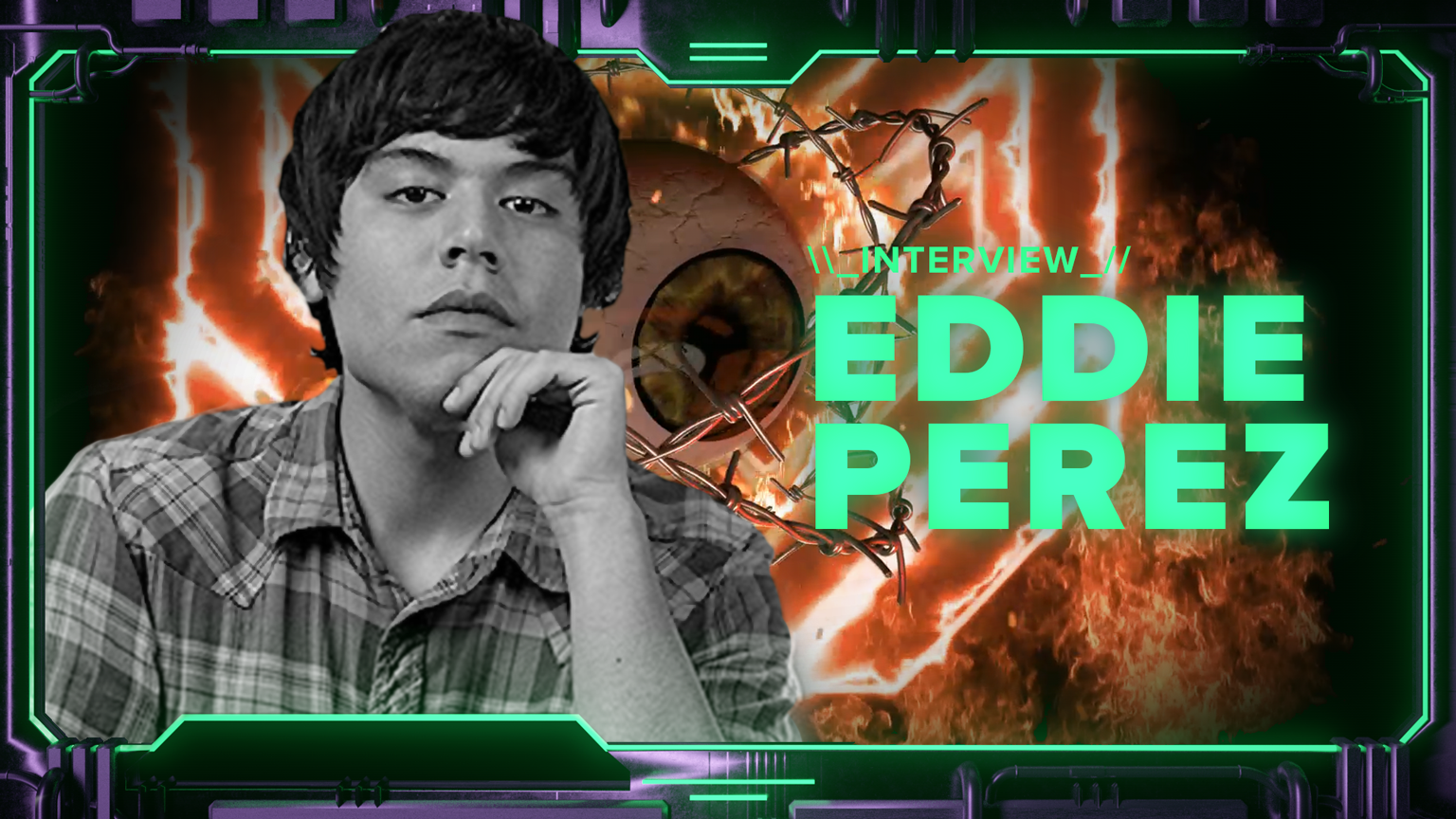
INTERVIEW: EDDIE PEREZ
In this episode, we sit down with Eddie Perez aka Eddie Visual to discuss his experience coming up as a concert visual designer, 3D animator, and VJ. He talks about his first few gigs making club flyers and how that led to working with some of the biggest artists on some of the biggest stages in the world. He tells us about how he finds success through giving more than he gets and following passion over paychecks. Eddie Perez (EddieVisual) is a Creative Director, 3D Animator, and VJ based in Los Angeles, who has worked with such artists as SAYMYNAME, Sudden Death, Lil Pump, Smokepurp, Coheed, Sullivan King, Meghan Trainor, and performed on major festival stages around the world.
In this episode, we sit down with Eddie Perez aka Eddie Visual to discuss his experience coming up as a concert visual designer, 3D animator, and VJ.
He talks about his first few gigs making club flyers and how that led to working with some of the biggest artists on some of the biggest stages in the world. He tells us about how he finds success through giving more than he gets and following passion over paychecks.
Eddie Perez (EddieVisual) is a Creative Director, 3D Animator, and VJ based in Los Angeles, who has worked with such artists as SAYMYNAME, Sudden Death, Lil Pump, Smokepurp, Coheed, Sullivan King, Meghan Trainor, and performed on major festival stages around the world.
Eddie's LInks:
Instagram: https://www.instagram.com/eddievisual/
Website: http://eddievisual.com/
How to Set Up A Virtual Live Stream Concert
Why are we Live Streaming?
As large gatherings are cancelled and postponed for the forseeable future, Artists are seeking new ways to perform live for their fans virtually. Its still such a new frontier and there is a lot of experimentation happening. Artists are using the resources at their disposal to do what they can to create a show and entertain their fans via the streaming platform of their choice.
Lets take a look at a few of the different forms that a virtual concert production can take, and how DJs, Musicians, and VJs can create together via the internet.
THE DIY SETUP
The simplest form is for the musician to point a camera at themselves and go Live. While it may not be the most visually stunning, it is easy to deploy and can have an intimate atmosphere especially if the artist is able to interact with their audience during the performance. This is a great option for those with an active performance element like finger drumming or live instrumentalists. Try dressing up your space with themed props or creative lighting to add visual interest for those watching.
Another simple setup if the artist has access to a projector and has some visual experience or if the artist and VJ can be in the same room. The projected visuals add some visual interest to the stream. If you're a solo operation try using Serato or Ableton to link video to the different parts of your track. If you need some loops, check out vjloops.com resolume.com/footage or VJ Union Sell & Share on Facebook, or just rip your favorite Rick & Morty episodes and call it a day.
THE SETUP: Camera to Capture card and Audio to Audio interface into Streaming Computer.
Visuals FOCUSED
Another option is to focus the stream on the visuals and stream those full screen. This approach can have a clean and high quality visual look when a camera-ready space is not available, and you can always mix in a camera feed as well. This is a good option for DJs and VJs working remotely, as the DJ can stream privately to the VJ, who then mixes live to that stream, and streams their output to the final viewer.
THE SETUP: DJ Camera Feed into VJ Computer. VJ Output and DJ Audio to Stream
DJ On Green Screen
To build on the previous option, if you have a green or bluescreen backdrop available, you can film the DJ against that and composite them over the visuals or into a virtual stage design for a cleaner combination of DJ Cam and Fullscreen Visuals. The possibilities for creativity really start to expand here when you get into the idea of a virtual set, and the setup is still relatively simple to execute.
THE SETUP: Solid backdrop behind DJ, DJ Camera Feed into VJ Computer, Remove Background with Chroma Key and Layer onto Visuals. VJ Output and DJ Audio to Stream
DJ with Full Production
A great option for tours that were just about to hit the road or production companies with space and LED panels available is to stream a session in your space with the full production set up. LED Screens, Smoke, Pyro, the full show seen from the best angles live. Kayzo and Code Orange did this really well, as is Insomniac with their Virtual Rave-A-Thons
EXTENDED REALITY (XR) / MIXED REALITY
One of the new frontiers of visuals which has began being used in films is gaining a lot of interest for virtual concerts due to it actually needing to be viewed through a camera. Essentially projection mapping with a dynamic camera position, this setup allows a partial cube of LED panels to be transformed into a 3D environment when viewed through the camera. Using realtime software like Notch, Unity, or Unreal, that camera can move around the scene and the proper viewing perspective is projected onto the LED walls which creates a 3D illusion that is unprecedented.
VR concerts
Another cutting edge approach being pioneered by the fine folks at The Wave, the artist is suited up in a mocap suit which controls their avatar within a VR concert venue. The entire space becomes a VJ-able 360 degree visual experience that viewers can participate in using their VR headsets.
Notch Particle Mesh Renderer
Why doesn't the Particle Mesh Renderer Work?! If you've tried to use the Mesh Renderer to use 3D Objects geometry in your particle system, it doesn't work! I will show you the solution, and how to set up a Clone to Particles node to achieve the same effect.
Notch Node Graph Navigation
A quick overview of the key commands used to move around the Node Graph in Notch. We will cover the basics of moving around, as well as a few tips that help you work with a larger scene.
Notch Particle Basics
A quick overview of the basics of setting up a particle system in Notch. We cover the essential nodes needed to create a particle system and how to make it all work.
Getting Started In Notch - Basic Overview Walkthrough
This video walks you through the very first experience with Notch. It covers the different download options for the software, starting a new project, the main areas of the interface, using different types of nodes, navigating the viewport and manipulating objects, importing resources, and using cameras. This will give you the foundational skills needed to start creating with and exploring Notch. Get Notch https://notch.one
360° Images on Facebook
Hey 360 fans!
Facebook just rolled out the ability to upload 360 panorama images. 360 Cameras like the Theta S are great, but I love creating images from scratch in Photoshop and Cinema4D as well. To create 360 Images this way, we'll need to tweak some Metadata tags in order for Facebook to recognize the image as a 360° panorama.
Hey 360 fans!
Facebook just rolled out the ability to upload 360 panorama images. 360 Cameras like the Theta S are great, but I love creating images from scratch in Photoshop and Cinema4D as well. To create 360 Images this way, we'll need to tweak some Metadata tags in order for Facebook to recognize the image as a 360° panorama.
First, create the image. It should have a 2:1 ratio, so twice as wide as it is tall. It should also be high res. At least 4K wide, although the more pixels the merrier. I often go up to 8000x4000
Next, tweak the metadata! There are a few tools out there that I have found to work easily
SetEXIFData(Mac) http://marc.vos.net/downloads/setexifdata/
Edit EXIF online: http://www.imgonline.com.ua/eng/exif-editor.php
Set 'Camera Make' to RICOH and 'Camera Model' to RICOH Theta S.
Process/save and you're good to go! Upload that sucker to Facebook and spin around in the world you've just created!
360º VR Animation - 6 Cam Method
Hey mograph peeps! This is my second article on creating 360º VR videos. If you missed my first article about the Shiny Sphere method in C4D (no plugins needed!!!) you can check that out here: 360º VR Animation with Cinema4D.
This method produces essentially the same results, but there are some differences in workflow. Lets take a look before we begin.
Hey mograph peeps! This is my second article on creating 360º VR videos. If you missed my first article about the Shiny Sphere method in C4D (no plugins needed!!!) you can check that out here: 360º VR Animation with Cinema4D.
This method produces essentially the same results, but there are some differences in workflow. Lets take a look before we begin.
The Pros
Uses the Render Queue so you get access to Multipass layers, Team Render, and the handy dandy progress bar, etc.
The Cons
Need to stitch the 6 outputs together and warp them into an Equirectangular video so that it looks right when uploaded, which requires a plugin (or some tedious mesh warping? I go for the plugin)
Lets jump right in!
Setting up your Cameras
The 6-Cam method uses 6 standard Cameras pointing in all directions to capture your scene in 360º.
Set up your first camera and label it FRONT. Make its focal length 18mm. Cmd+B to open up render settings real quick and set your output to 1024x1024 (recommended for best final output) or some other 1:1 size.
Create a second camera in the exact same spot (copy+paste), turn it 90º to the LEFT and label it LEFT. and so on for RIGHT, BACK, TOP, and BOTTOM. Sweet! You should have a cube of cameras. I recommend attaching these to a null so you can move them around and creating a separate camera for previewing so you don't fuck them all up.
Render Settings
Next thing to do is set up your Render Settings. Make sure your Output Size is 1024x1024 and set your save location. You will be doing a render for each camera, so I recommend making a folder for your FRONT image sequence, and another for LEFT, RIGHT, and so on. You can set up your multipasses and whatever else you need to.
Now when you are ready to render, pop it in the Render Queue with the camera set to FRONT. Duplicate this render 5x in the queue. Match up the Cameras and Save Paths with their respective renders and press go! Then go do something because this might take a while! But you're used to this by now.
Stitching
I use Mettle Skybox ($99) for this and it works great. Skybox will do what I describe here, but if you want some advanced tools for compositing and previewing check out the Studio version. Chris from the Mettle team is a super nice guy and helped me out a ton with understanding how the workflow works. No he is not paying me, it just feels even better to give my money to good people who are passionate about what they do and excited to share the knowledge.
Anyway, Pop your footage into AE. We are going to make a cube map, with LEFT, FRONT, RIGHT, and BACK lined up horizontally across the comp. TOP and BOTTOM go above and below FRONT.
Take this comp and put it into a new comp. Throw the Skybox Converter effect on it, and convert from Cube Map to Equirectangular.
BAM! Look at that wavy weird goodness!
Render that shit out of AE! You'll need an MP4 version, so I recommend using Adobe Media Encoder's H.264 preset. Next you need to prep the file for upload.
I've got an AE template (FOR FREE) here. [SKYBOX LICENSE REQUIRED] Option+Drag'n'Drop to replace each solid with its respective footage and zim-zala-bim! magic makes it look right in the output comp!
Metadata
YouTube is working on just being able to know that these bizarro looking videos are 360º VR vids, but at the moment its not built in. They released a tool here that adds a line of metadata to your video file that tells YouTube that it is made with a spherical camera. Scroll down to ‘Prepare for Upload’ and choose Mac or Windows version.
Toss your mp4 in the app, press Inject, and voila! The metadata has been added.
Upload
Upload that sucker to YouTube and tell your Mom to check out the cool thing you did!
360º VR animation with Cinema 4D
This is a quick walkthrough about how to create animated 360ºVR content for YouTube using native Cinema4D tools!
[I have an alternative method outlined here: The 6-cam method which also uses native tools. It includes a few extra steps and a third party plugin, but it comes with a few benefits.]
Anyway, Lets hop right in:
This is a quick walkthrough about how to create animated 360ºVR content for YouTube using native Cinema4D tools!
[I have an alternative method outlined here: The 6-cam method which also uses native tools. It includes a few extra steps and a third party plugin, but it comes with a few benefits.]
Anyway, Lets hop right in:
Spherical Camera
To make 360º content, we'll need a camera that can look in all directions at once, aka a Spherical Camera. Cinema 4D does not natively include a spherical camera. If you use VRay, you're in luck! VRay includes a spherical camera. Sweet! But I don't have vray so fuck that, we're gonna do this with regular ol' Cinema tools. You can skip these steps and download a rig I put together here if you'd like to save some time: Sean's Spherical Camera Rig for C4D. This rig will be periodically updated to become more robust over the next few months, and if you purchase now those updates will be sent to you for free! [UPDATE 9/10: Now includes Preview Cam with realtime pan/tilt control to simulate Youtube user experience directly in viewport]
To hack a spherical camera in C4D we're going to use a shiny sphere (Nick Campbell's ears are ringing right now).
Pop a sphere in your scene and make it pretty small. lets say 1cm. Throw a Compositing tag on there and uncheck Seen by Camera, Seen by Transparency and Seen by Reflection...pretty much uncheck everything. We want this guy to be 'invisible' to our scene like c4d cameras are.
Next just create a new material, turn off everything and turn on reflection. Leave it as is: 100% brightness, no Fresnel or anything (sorry Nick). Sweet! Now you have a spherical camera!
You will move this around your scene like its the camera. Wherever this sphere is will be where the viewer is able to pivot from. I recommend parenting a few actual cameras to your sphere so you can look through them in every direction as you animate. Kinda hacky, but it works! And you didn't have to spend a ton of $$ to make it happen.
Rendering
We are not going to render like we usually do. Since we aren't using a real camera we have to get a little hacky about this part too. We'll use the Bake Texture tag to save out the reflections on our sphere. Since we have a fully reflective sphere we will get an image that includes EVERYTHING 360º around our scene, as though there was a camera on every single point of the sphere.
Right click your Sphere>Cinema4D Tags>BakeTexture Tag to apply the tag
Here are a few key settings:
[Tag tab]
Set your Filename and save path, as well as file type. These options should look familiar from the render options.
Uncheck Automatic Size if it is checked. Set your size to have a 2:1 ratio. I generally use Width: 6000 Height: 3000. I wouldnt go below 4000x2000
[Options tab]
Leave everything unchecked except Reflection
[Details tab]
Either check Use Current Render Data and set your start and end time in the Render Options, or uncheck it and do it here.
Drag the 100% Reflective Texture Tag from your Spherical Cam object (not from the material manager).
Now go back to the Options Tab and press preview. Make sure some objects show up! If its black, double check that you dragged the right material and checked the proper boxes in the Bake Texture Tag. If it looks good, press Bake and go for a walk. These take a while, especially when you consider the Resolution.
The output is a distorted panorama image very similar to what you'd use for an HDRI sky map. After you bake out your image sequence (recommended! If a movie file screws up, you're left with a useless file. If an image sequence screws up, you can pick up where it left off) you'll need to render to an mp4 format. Now we have one final step before we can upload to YouTube!
Metadata
YouTube is working on just being able to know that these bizarro looking videos are 360º VR vids, but at the moment its not built in. They released a tool here that adds a line of metadata to your video file that tells YouTube that it is made with a spherical camera. Scroll down to 'Prepare for Upload' and choose Mac or Windows version.
Toss your mp4 in the app, press go, and voila! The metadata has been added.
Upload
Upload that sucker to YouTube and tell your Mom to check out the cool thing you did!
-
2022
- Nov 8, 2022 Resolume.com Interview with Sean Bowes Nov 8, 2022
-
2021
- Jun 11, 2021 Q&A Feature with Disguise Jun 11, 2021
- May 21, 2021 CLOAKING | MAKING MUSIC VISUAL - Interview Series | How to make Concert Visuals May 21, 2021
- May 14, 2021 RAUXRAUX | MAKING MUSIC VISUAL - Interview Series | How to make Concert Visuals May 14, 2021
- May 14, 2021 COLIN STRANG | MAKING MUSIC VISUAL - Interview Series | How to make Concert Visuals May 14, 2021
- Apr 22, 2021 OFER ZMORA | MAKING MUSIC VISUAL - Interview Series | How to make Concert Visuals Apr 22, 2021
- Apr 16, 2021 R18 Disguise RenderStream Setup | Unreal (UE4) | XR Tutorial Apr 16, 2021
- Apr 16, 2021 INTERVIEW: EDDIE PEREZ Apr 16, 2021
-
2020
- Apr 28, 2020 How to Set Up A Virtual Live Stream Concert Apr 28, 2020
- Apr 3, 2020 Notch Particle Mesh Renderer Apr 3, 2020
- Apr 3, 2020 Notch Node Graph Navigation Apr 3, 2020
- Apr 3, 2020 Notch Particle Basics Apr 3, 2020
- Apr 3, 2020 Getting Started In Notch - Basic Overview Walkthrough Apr 3, 2020
-
2017
- Feb 17, 2017 360° Images on Facebook Feb 17, 2017
- Feb 17, 2017 360º VR Animation - 6 Cam Method Feb 17, 2017
- Feb 17, 2017 360º VR animation with Cinema 4D Feb 17, 2017